
Screen Recorder for Beginners: 7 Easy Tools to Start
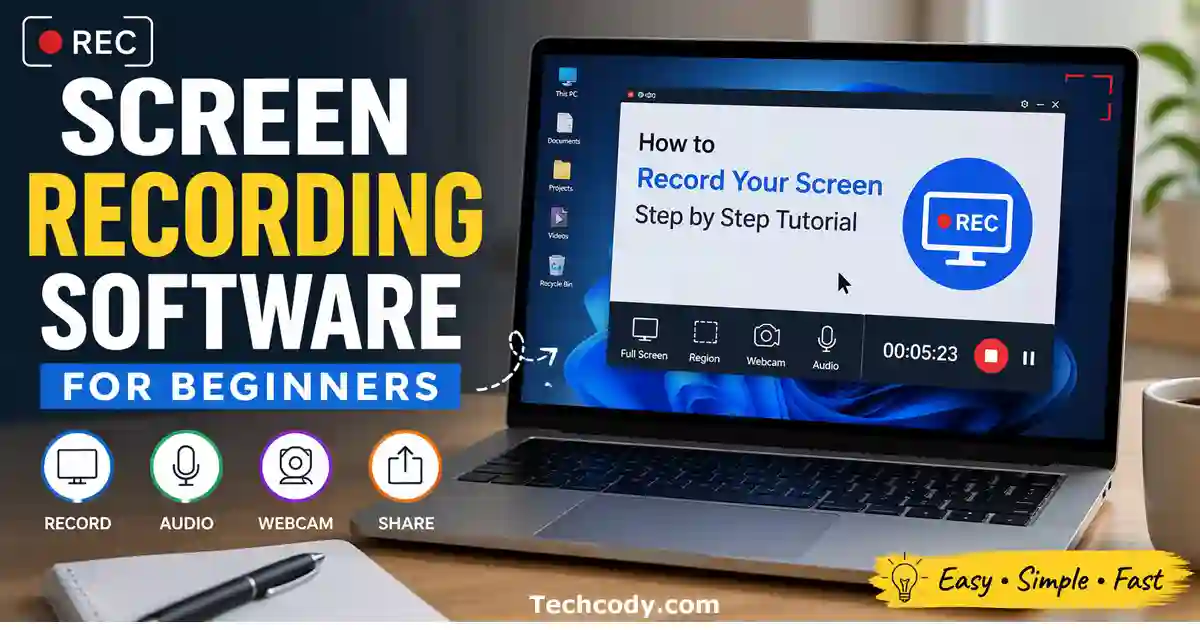
Screen recording has become an essential skill in today’s digital world. Whether you want to create tutorials, record gameplay, share presentations, or explain something on your screen, having a reliable screen recorder makes the process simple.
Many beginners feel confused when choosing their first recording tool. Some software looks complicated, while others require technical knowledge. The good news is that several beginner-friendly tools are designed to make screen recording easy.
This guide explains everything you need to know about choosing a screen recorder for beginners and introduces seven easy tools that anyone can start using today.
Table of Contents
What Is a Screen Recorder?
A screen recorder is software that captures everything happening on your screen. It records your actions, mouse movements, and sometimes audio from your microphone or computer.
Beginners commonly use screen recorders for:
- Creating tutorial videos
- Recording online classes
- Saving webinars
- Capturing gameplay
- Making product demonstrations
- Sharing technical instructions
Most modern screen recorders also allow saving videos in popular formats like MP4, making sharing very easy.
Features to Look for in a Screen Recorder for Beginners
Choosing the right features makes learning screen recording much easier. Beginners should focus on tools that are simple and reliable.
1. Simple Interface
A beginner-friendly screen recorder should have clear buttons and minimal settings. Complicated menus can slow down learning.
2. One-Click Recording
Look for tools that allow starting recording with one click. This makes recording quick and stress-free.
3. Microphone Recording
Voice recording is useful for explaining steps in tutorials or adding commentary during recordings.
4. Export in Popular Formats
Saving videos in formats like MP4 ensures your recordings can be played on most devices.
5. Low System Usage
Lightweight software works better on average computers and prevents lag during recording.
How to Choose the Best Screen Recorder for Beginners
Choosing the right screen recorder for beginners depends on your device, recording needs, and experience level. A good screen recorder for beginners should be easy to install, simple to use, and reliable for everyday recording tasks. Beginners should select software that offers simple controls, reliable performance, and clear recording options.
7 Easy Screen Recorder Tools for Beginners
Here are seven beginner-friendly screen recording tools that are simple, reliable, and widely used. The table below compares popular screen recorder tools to help beginners quickly choose the right option based on their needs.
Screen Recorder Tools Comparison Table
Before choosing a tool, compare their key features in the table below. This quick overview helps beginners identify the best screen recorder based on platform, ease of use, and features.
| Tool Name | Free Version | Ease of Use | Best For | Platform |
|---|---|---|---|---|
| OBS Studio | Yes | Medium | High-quality recording and streaming | Windows, Mac, Linux |
| ShareX | Yes | Medium | Lightweight screen capture | Windows |
| Bandicam | Limited Free | Easy | Gameplay and long recordings | Windows |
| ScreenPal | Yes | Very Easy | Educational videos | Windows, Mac |
| Loom | Yes | Very Easy | Quick sharing and communication | Windows, Mac, Browser |
| Xbox Game Bar | Yes (Built-in) | Easy | Basic screen recording | Windows |
| QuickTime Player | Yes (Built-in) | Easy | Mac screen recording | Mac |
1. OBS Studio
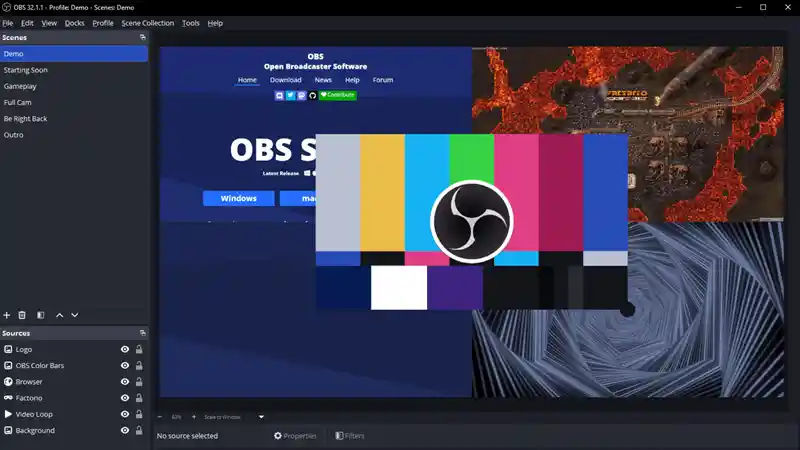
OBS Studio is one of the most powerful free screen recorders for beginners who want high-quality recordings without paying for software. It supports full-screen recording, window recording, and custom recording areas, making it flexible for many types of users.
Even though OBS Studio includes many advanced features, beginners can start recording quickly using its default settings. Over time, users can explore features like scene switching, overlays, and streaming options.
Another advantage of OBS Studio is that it supports high-quality video recording without watermarks. This makes it a strong choice for beginners who want professional-looking recordings without paying for software. You can download OBS Studio from its official website to ensure you get the latest safe version.
Best for:
- Free high-quality recording
- YouTube tutorials
- Gameplay recording
- Learning advanced recording features later
2. ShareX
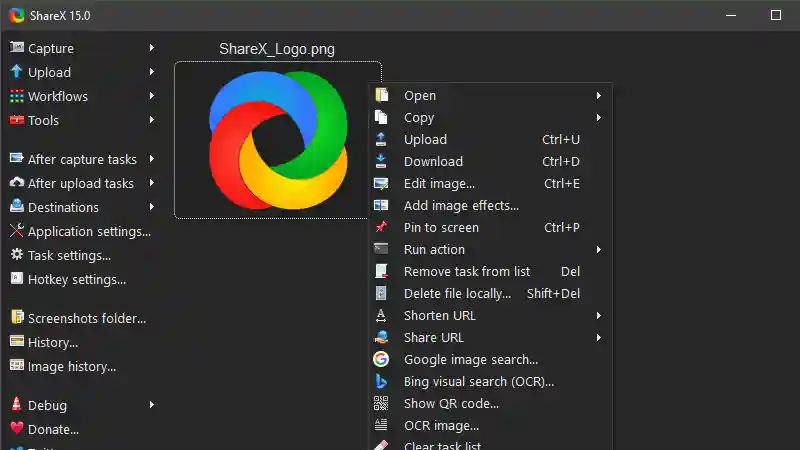
ShareX is a lightweight screen recorder for beginners that offers many useful features without slowing down your computer. It allows users to record screens, capture images, and share files easily.
One of the biggest benefits of ShareX is its speed and performance. It runs smoothly even on low-end computers, which makes it ideal for beginners who don’t have powerful systems.
ShareX also includes customization options, allowing users to choose recording areas and output formats. Beginners can start simple and gradually explore advanced features when needed.
Best for:
- Quick tutorials
- Lightweight recording
- Screen capture tasks
- Users with low-end computers
3. Bandicam
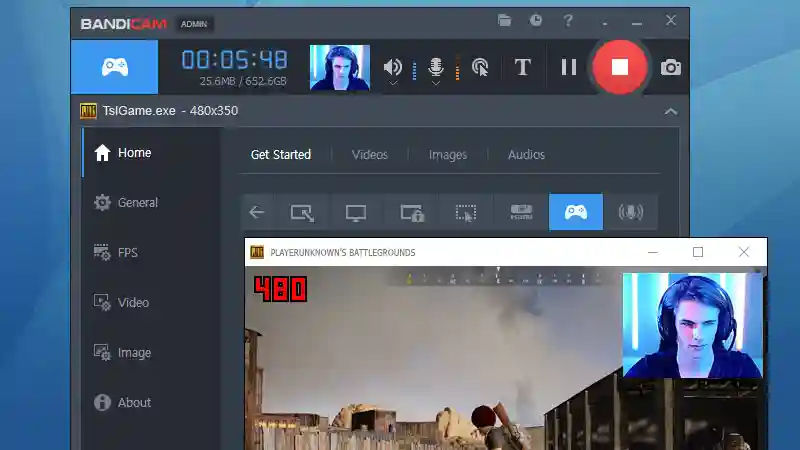
Bandicam is a beginner-friendly screen recording tool known for its smooth performance and high-quality output. It allows recording full screens, selected areas, or specific applications.
One feature that makes Bandicam popular is its ability to compress video files while maintaining quality. This helps save storage space, which is useful for users who record videos frequently.
Bandicam also supports recording external devices like webcams and gaming consoles, making it versatile for different recording needs.
Best for:
- Gaming recordings
- Smooth screen capture
- High-quality video output
- Recording long sessions
4. ScreenPal
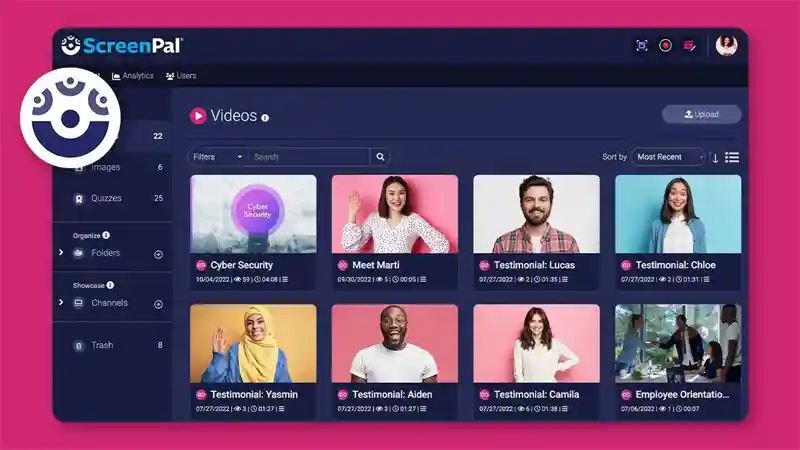
ScreenPal is designed with beginners in mind. It focuses on simplicity, allowing users to start recording quickly without learning complex settings.
The tool also includes basic editing features such as trimming recordings and adding simple text overlays. These features help beginners refine their recordings without needing separate editing software.
ScreenPal works well for creating educational content and simple instructional videos, especially for users who want an all-in-one solution.
Best for:
- Educational videos
- Beginners learning recording
- Simple editing tasks
- Classroom demonstrations
5. Loom
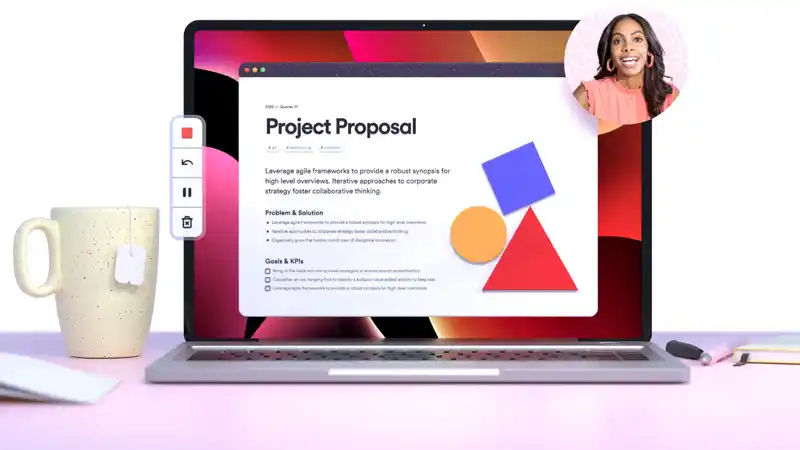
Loom is a popular screen recorder for beginners widely used for recording short videos and sharing them instantly. It is especially useful for communication, feedback, and quick explanations.
One unique feature of Loom is its instant sharing capability. After recording, users receive a link that can be shared immediately without downloading large files.
Loom also supports webcam recording along with screen recording, making videos more personal and engaging.
Best for:
- Team communication
- Quick explanations
- Short tutorial videos
- Remote collaboration
6. Xbox Game Bar (Windows Built-In)
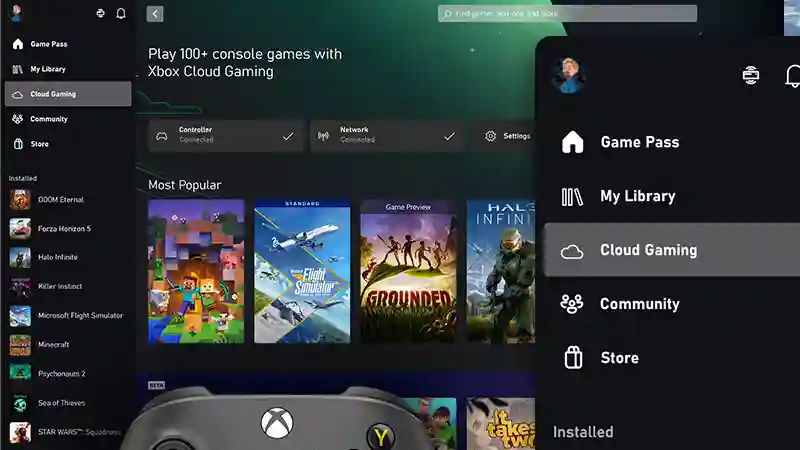
Xbox Game Bar is a built-in screen recording tool available in Windows systems. Since it comes pre-installed, beginners can start recording without downloading additional software.
The interface is simple and includes basic recording controls. It works well for capturing gameplay, applications, and simple tutorials. Although it does not include advanced editing features, it is perfect for beginners who want a quick and reliable recording solution.
You can use Xbox Game Bar without installing extra software. Learn more or install updates from the official Xbox Game Bar page.
Best for:
- Windows users
- Quick recordings
- Basic gameplay capture
- Simple tutorials
7. QuickTime Player (Mac Built-In)
QuickTime Player is a built-in tool available on macOS devices. It allows users to record screens without installing extra applications.
The recording process is simple and clean, making it ideal for beginners who want minimal setup. Users can record the entire screen or selected portions depending on their needs.
QuickTime Player also allows saving recordings in standard formats that are easy to share and edit later.
Mac users can record screens using QuickTime Player, which is pre-installed on macOS devices. Visit the official Apple download page: QuickTime Player.
Best for:
- Mac users
- Simple recordings
- Beginner tutorials
- Lightweight screen capture
Best Screen Recorder for Low-End PCs
If your computer has limited RAM or older hardware, choose lightweight tools such as:
- ShareX
- Xbox Game Bar
- Loom
These tools use fewer system resources and run smoothly on most entry-level computers.
How to Start Using a Screen Recorder
Beginners can start recording screens by following these simple steps:
- Install a beginner-friendly screen recorder
- Select the screen area to record
- Enable microphone recording if needed
- Click the record button
- Perform actions on your screen
- Stop recording after finishing
- Save your video file
With regular practice, beginners quickly become comfortable using screen recording tools.
Common Mistakes Beginners Should Avoid
Many beginners make small mistakes that affect recording quality. Avoiding these mistakes improves results immediately.
- Not testing microphone audio
- Recording at extremely high resolution unnecessarily
- Running too many apps in the background
- Ignoring storage space limits
- Recording without planning content
Tips to Improve Recording Quality
If you plan to edit your recordings after capturing them, you may also find our guide on video editing software for beginners helpful.
Improving screen recording quality does not always require expensive software. Simple adjustments can make a big difference.
- Use a quiet environment
- Keep desktop clean and organized
- Record at 1080p resolution
- Move the mouse slowly and clearly
- Speak clearly while recording
Is Free Screen Recording Software Enough for Beginners?
Yes, free tools are usually more than enough for beginners. Most paid tools include advanced editing features that beginners rarely need in the beginning.
Starting with free software allows beginners to learn screen recording without spending money.
What is the best screen recorder for beginners?
OBS Studio, ShareX, and Loom are among the best screen recorder tools for beginners because they offer simple controls and reliable recording features.
Is there a free screen recorder for beginners?
Yes, many free tools such as OBS Studio and ShareX provide excellent features that are suitable for beginners without requiring payment.
Can beginners record screen with audio?
Yes, most beginner-friendly screen recorders allow microphone recording, making it easy to add voice explanations to videos.
Do screen recorders slow down computers?
Lightweight screen recorders usually run smoothly on most computers. Choosing optimized software helps reduce lag during recording.
Which screen recorder is easiest to use?
Loom and ScreenPal are considered among the easiest screen recorders because they provide simple interfaces and quick recording options.
Final Thoughts
Choosing the right screen recorder for beginners is the first step toward creating professional tutorials, presentations, and learning videos. With simple tools and consistent practice, beginners can create tutorials, presentations, and videos confidently.
Start with easy tools, learn basic features, and gradually explore advanced options when needed.