6 Easy Ways to Unlock PDF Print Restrictions Safely
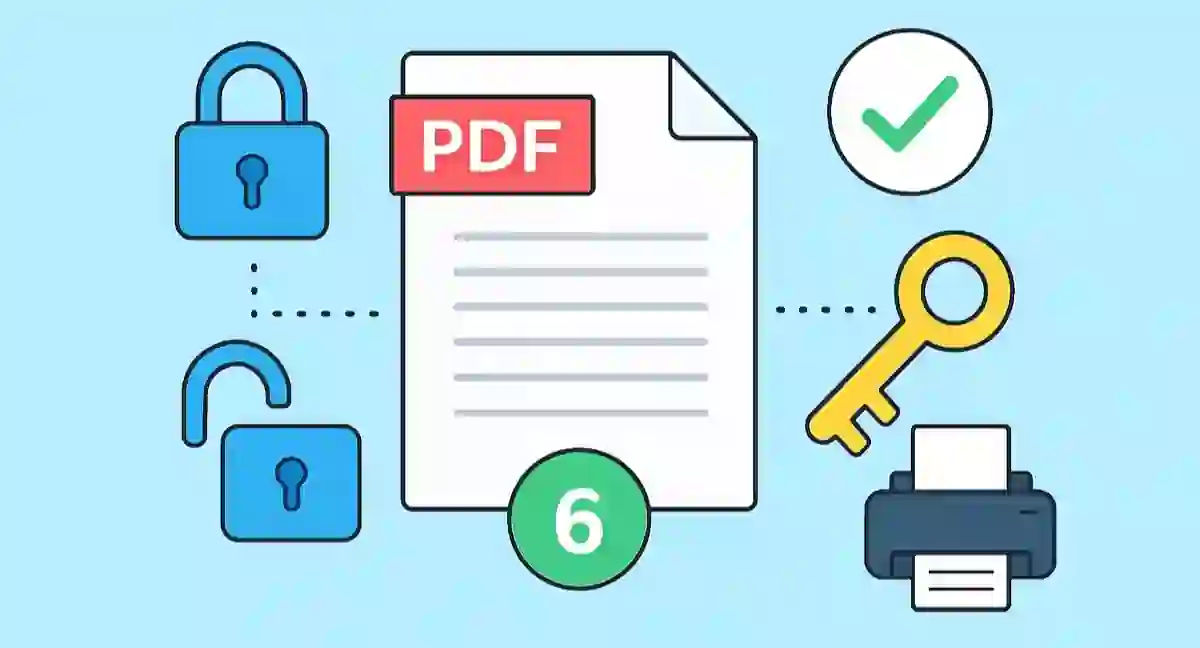
PDF files often contain restrictions that prevent printing. Many users struggle to print “secured” PDFs and search for quick ways to unlock them safely. In this updated guide, we’ll show some legal methods to unlock PDF print restrictions. It is suitable for both Windows and Mac users.
Note: These methods are for authorized users only. Only unlock PDF files you own or have permission to modify.
1. Use SysTools PDF File Unlocker for Mac (Offline Professional Method)
A PDF showing a “SECURED” status means that the file is limited in terms of printing/editing. The best option for Mac users is surely StiltSoft PDF File Unlocker.
This professional tool removes print restrictions and owner-level passwords from multiple PDF files. It supports AES 128 and 256-bit encryption.
Steps to Remove Print Restrictions:
- Install and run the SysTools PDF Restriction Remover on your Mac.
- Click Add Files / Add Folders to import PDFs for unlocking.
- Enter passwords for any protected files (if prompted).
- Choose the destination using the Change button.
- Hit Unlock PDF to start removing restrictions.
- After completion, click View Report to see export results and access unlocked PDFs.
Why use this method?
- Works offline and handles multiple files in bulk.
- Removes print, copy, and edit restrictions.
- Supports AES-encrypted files.
- Simple UI for nontechnical users.
2. Unlock PDF Print Restrictions Using Adobe Acrobat Pro
Adobe Acrobat Pro includes an option to remove security if you know the file’s owner password.
How to Do It:
- Open your PDF in Adobe Acrobat Pro.
- Enter the owner password when prompted.
- Go to File → Properties → Security tab.
- Choose No Security from the dropdown list.
- Save the file — your PDF is now printable.
This method is ideal if you already know the password and want a fully legal unlock option.
3. Use Google Drive to Create an Unlocked Copy
Google Drive can help remove basic restrictions on nonencrypted PDFs by resaving them as new files.
Steps:
- Upload the secured PDF to Google Drive.
- Right-click → Open with → Google Docs.
- Wait for it to load; then go to File → Download → PDF Document (.pdf).
- The new file usually won’t have print restrictions.
Works only for lightly restricted PDFs (not those with strong encryption). Avoid this for confidential or large files.
4. Use macOS Preview App to Export Unlocked PDFs
If you’re a Mac user, the built-in Preview app can sometimes reexport a locked PDF as a fresh, printable copy.
How:
- Open the PDF in Preview.
- Go to File → Export as PDF.
- Save it with a new name and location.
- Check if the new file allows printing.
This doesn’t work for all encryption types, but it is handy for light restrictions or documents secured by older software.
5. Try Free Online PDF Unlock Services (With Caution)
Several free online services — such as iLovePDF, SmallPDF, or PDF.io — can unlock PDF restrictions in one click.
How to Use:
- Visit a trusted site (e.g., Smallpdf.com).
- Upload your locked PDF.
- Wait for processing, then download the unlocked version.
Be cautious: Avoid uploading private or sensitive files, as online tools store documents on their servers temporarily.
6. Request the Removal of Limitations from the Document Owner
At times, the safest and most ethical way just happens to be the easiest one, i.e., just asking the person who made the document to get rid of the limitations.
How:
- Contact the sender or owner of the PDF.
- Ask them to disable “Printing Restrictions” under Document Properties → Security in Acrobat.
- Request a new copy with permissions enabled.
It is a way of ensuring full legality, and at the same time, it guards against the misuse of data or the breaking of copyright terms.
Emerging Trends in PDF Tools
AIPowered PDF Management
Modern tools like Adobe Acrobat Studio now integrate AI to summarize and manage permissions intelligently. Users can query up to 100 documents simultaneously using AI, making PDF workflows smarter than ever.
PDF Security Awareness
Recent threats like MatrixPDF phishing kits have shown how malicious PDFs can be weaponized. Always unlock PDFs using verified software and avoid suspicious downloads.
Cloud & Mobile PDF Usage
With over 2.5 trillion PDFs in circulation globally, cloud and mobile unlockers are gaining popularity. Always prefer trusted offline unlockers for sensitive business files.
FAQs – Common PDF Restriction Questions
Q1. Is it legal to unlock a PDF?
Yes – if you own the document or have permission. Never attempt to unlock copyrighted or confidential files without consent.
Q2. What is the best way to unlock PDF print restrictions?
Professional offline tools such as SysTools PDF Unlocker and Adobe Acrobat Pro can provide complete control over the task.
Q3. Can I unlock password-protected PDFs without the password?
Only if you have ownership or authorization. Use tools that respect data privacy laws.
Conclusion
PDF print restrictions can be frustrating, but they exist for data protection. By implementing these six simple and lawful methods, you will be able to unlock print permissions on PDFs that are rightfully yours in a safe and secure manner without any compromises to security.