Optimize PC Gaming: Best Settings for Casual Gamers
PC gaming can offer a very thrilling experience. But casual gamers may often have problems with lag and low performance. The good news is you can optimize PC gaming easily. You do not need expensive hardware. A few changes in settings and maintenance can improve your gameplay. This guide will help you adjust your PC for smoother gaming. We focus on simple steps and realistic tips. Whether you play action games or casual strategy titles, these techniques work for most computers. Let us explore how you can optimize PC gaming today.
Understanding Optimize PC Gaming
It’s the process of making it capable of delivering better performance without necessarily requiring a major upgrade. Optimizing PC gaming focuses on software settings, graphics, and system management. It does not require advanced knowledge. You just need to follow the steps carefully. Optimizing also helps your PC stay stable while playing games. It reduces crashes and overheating. Even older PC can perform better after optimization. Proper settings can make your gaming more enjoyable and consistent.
Adjust Graphics Settings
One of the first steps to optimize PC gaming is graphics adjustment. Lowering the resolution slightly can increase frame rates. Disable unnecessary effects like shadows and reflections. Many games allow you to set textures to medium or high. Using medium settings balances performance and visual quality. Turn off VSync if you experience input lag. Antialiasing can be lowered to improve speed. Optimize PC gaming by testing each setting while monitoring performance.
Update Drivers to Optimize PC Gaming
Graphics and system drivers are crucial for optimizing PC gaming. Outdated drivers can cause lag and crashes. Visit your GPU manufacturer’s website for the latest drivers. Installing drivers is simple and takes a few minutes. Update sound and network drivers as well. Optimizing PC gaming requires consistent driver updates for stable performance. Windows updates also improve compatibility with modern games. Running the latest drivers ensures fewer errors and better visuals. Casual gamers notice smoother gameplay after proper driver updates. Keep a reminder to update drivers monthly.
Manage Background Programs for Optimized PC Gaming
Too many programs running can slow down your PC during gameplay. Close web browsers, file-sharing apps, and software that are not in use. Disable unnecessary startup programs. Windows Task Manager helps identify heavy applications. Optimizing PC gaming requires freeing system memory for games. Background software uses CPU and can reduce frame rates. Casual gamers often miss this step. A clean desktop improves focus and reduces lag. Restart your PC before gaming for optimal results. Less clutter on your system ensures more resources are available for games. This step is essential for smooth gameplay.
Use Game Mode to Optimize PC Gaming
Windows Game Mode improves performance automatically on most PCs. It prioritizes CPU and GPU resources for active games. Easily turn on Game Mode in Windows settings. Optimizing PC gaming with Game Mode reduces interruptions from notifications. It can also prevent updates while you play. Casual gamers find it easy to enable without technical knowledge. Some games run smoother after activating Game Mode. Combine this with full-screen mode for the best results. Game Mode works well on both older and newer computers. This setting is designed specifically for gamers looking for easy performance gains.
Adjust Power Settings to Optimize PC Gaming
Power settings can influence your PC’s gaming performance. Use High Performance mode in Windows to get maximum speed. Avoid Battery Saver or Balanced modes during gaming. Optimizing PC gaming requires allocating full resources to your system. Laptops often reduce CPU and GPU speed on low power. Plugging in your device is essential for smooth gameplay. Casual gamers may ignore this step, but it makes a big difference. High Performance mode increases fan usage but prevents lag. Desktop users should check power plan settings in Control Panel. This simple tweak ensures your PC runs games efficiently.
Upgrade Hardware to Optimize PC Gaming
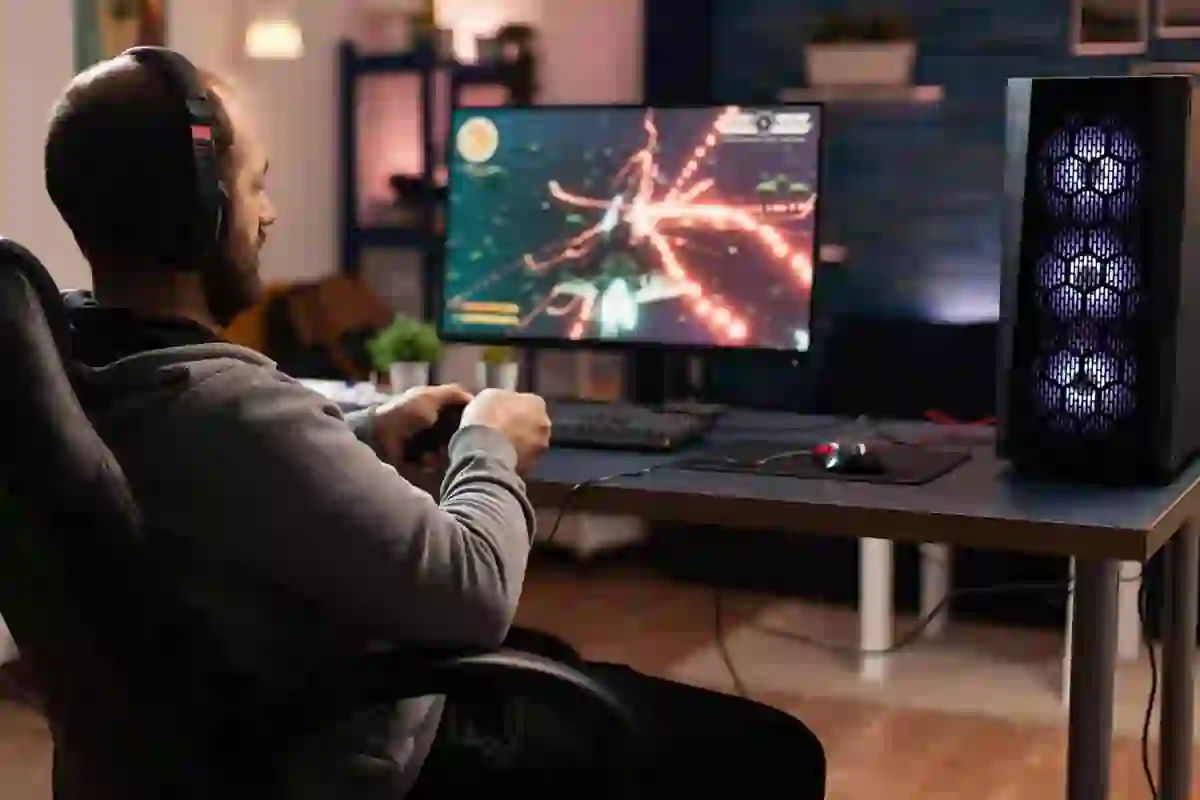
Remember, you do not have to get the most expensive upgrades for optimization. In general, the difference is quite clear with additional RAM or when you switch to an SSD. Of course, the biggest performance increase in frame rate comes from a better GPU. Consider upgrading only if your machine is unable to perform current games. Optimizing PC gaming does not always require a full system replacement. Focus on components that have the biggest impact for gaming.
Clear Cache to Optimize PC Gaming
Games and system cache can slow down your PC over time. Clear temporary files and uninstall unused programs. Freeing storage helps your PC run games smoothly. PC gaming optimization is also about maintaining an adequate amount of free disk space. Take a look at your hard drive if you do not use an SSD. Run disk defragmentation if necessary. Many casual gamers do not give this matter much thought. Check storage regularly for unnecessary files. Clean storage keeps your PC efficient for gaming.
Optimize Network Settings
Online gaming depends heavily on network performance. Use a wired connection for a stable and fast speed. WiFi often introduces lag or packet loss. Close other devices consuming the internet while gaming. Optimizing PC gaming with a stable connection reduces lag in multiplayer games. Change DNS settings for faster response times. Casual gamers often ignore this, but it improves online gameplay. Ensure your router firmware is updated for the best performance. Ping and latency can affect game responsiveness. A smooth network enhances the overall gaming experience for casual users.
Monitor Temperature to Optimize PC Gaming
The most common causes of performance degradation are overheating. When a computer is overheated, it may even lower your frame rate and cause slowdowns. Increase fan speed manually whenever the PC is overheated if this feature is available. Temperature control preserves the quality of your computer parts. It helps prevent damage over time. Gaming sessions will be more comfortable by maintaining a cool temperature consistently.
Conclusion
Upgrade your computer’s gaming performance to make it more responsive. Gaming will also be a great source of relaxation. Little tweaks can significantly boost your gaming fun. Routinely clean your computer and update software often. Games will be more fun and less of a headache with proper optimization.